
Your first entity
Curate the sample Account 360 entity. Every step applies the same way to an entity you create yourself. Started empty? Click + on the Entities page, pick an object, and the steps below are identical from there.
Open the builder
Studio → Entities, then click the Account 360 card. The builder has four tabs: Build, the canvas of everything the entity delivers; Meaning, its instructions; Domains, which domains carry it; and Access, whether agents may write through it.
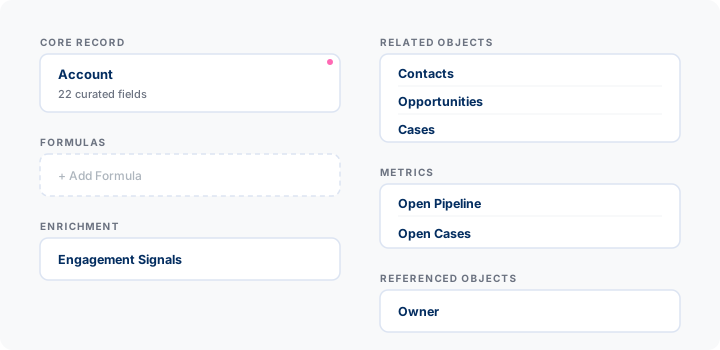
The Build canvas mirrors the payload: each section is a section the agent receives. Click a card to edit it; click an Add … card to add one.
Edits stay local until you click Save, which writes the draft. Agent calls keep assembling from the active version until you click Activate. The bar under the header reads Unsaved Changes or Edited Draft whenever the two differ. See Versions.
1. Write entity instructions
Open the Meaning tab. Instructions is org guidance the agent receives with every load of this entity — the highest-leverage field in the product. Tell the agent what no field can:
Accounts here are paying customers only — prospects live in Leads. Treat an account with no open opportunity and a renewal inside 90 days as at risk.
Write it as guidance to a capable new hire. Don’t restate what the fields already say.
2. Curate the fields
Back on Build, click the Core Record card to open the field picker. Every field has a checkbox per level: List, Standard, Detailed. You are curating three lists, capped by default at 10, 20 and 30 fields.
- Pick fields that inform a decision.
Renewal_Date__cchanges what an agent says;LastModifiedDaterarely does. - Curate the List level first. Those ten fields are also the columns this record shows as in other entities’ related lists — enough for a human to identify the record.
- Leave out mostly-empty fields. A field that’s rarely populated rarely informs. Quality shows how complete your entity’s data is once you have traffic.
3. Attach meaning to a field
In the field picker, click Show Meaning. The level checkboxes give way to a Meaning box on every field. What you write there is that field’s instruction, rendered inline with the value:
| Field | Instruction |
|---|---|
Health_Score__c | 0–100, refreshed nightly. Below 60 warrants outreach; below 40 is escalation. |
Type | ”Partner” here means a reseller, not a technology partner. |
Amount | Gross, before discount. Net is Expected Revenue. |
Put tribal knowledge here once — anything that would make a new hire misread a value — instead of in every prompt.
4. Add more context
Each Add … card brings another kind of context onto the entity:
- Metrics — a single number (“Open Pipeline: $40,000”) instead of rows the agent has to count. → Metrics
- Related lists — child records as rows, filtered and capped so the signal survives. → Related lists
- References — a parent record’s details inline, like the account on an opportunity. → References
- Formulas — arithmetic over this record’s fields, computed at load time. → Formulas
- Enrichments — computed context from Apex or Flow, for what configuration can’t produce. → Enrichments
- Filters — your org’s definition of a business word, so an agent asks for “at risk” accounts by name. The one addition that shapes which records come back rather than what each one carries. → Named filters
5. Save, then Activate
Click Save. Your edits are on the draft: previewable, and invisible to agents.
Click Activate. The dialog lists what changed and requires a comment — write why, not “update”:
Added open-pipeline metric; culled stale fields from detailed.
Confirm to publish the draft as v2. Every agent call receives it from then on, with nothing to deploy. If v2 is a mistake, Versions in the header puts an earlier one back.
Creating an entity from scratch
Same builder, one extra step. On Studio → Entities, click +:
| Field | Note |
|---|---|
| Object | Any queryable object, standard or custom |
| Entity name | The label. “Finance View” |
| API name | Generated from the label; editable now, fixed after |
| Description | What this view is for. Admins and agents both see it |
Click Create Entity. The first entity on an object becomes its default, seeded with a starting field list from the object’s page layout. A second entity on the same object is a named view — see Entities. Either way it starts Inactive, and agents don’t see it at all until your first Activate publishes it.
What’s next
- Preview and verify — see exactly what an agent will see.